HEIC to JPG explained: compatibility, quality, and batch conversion
Understand HEIC and HEIF, convert an iPhone photo to JPG locally, choose quality carefully, and compare batch options for larger libraries.
Updated . How guides are checked
Primary sources checked
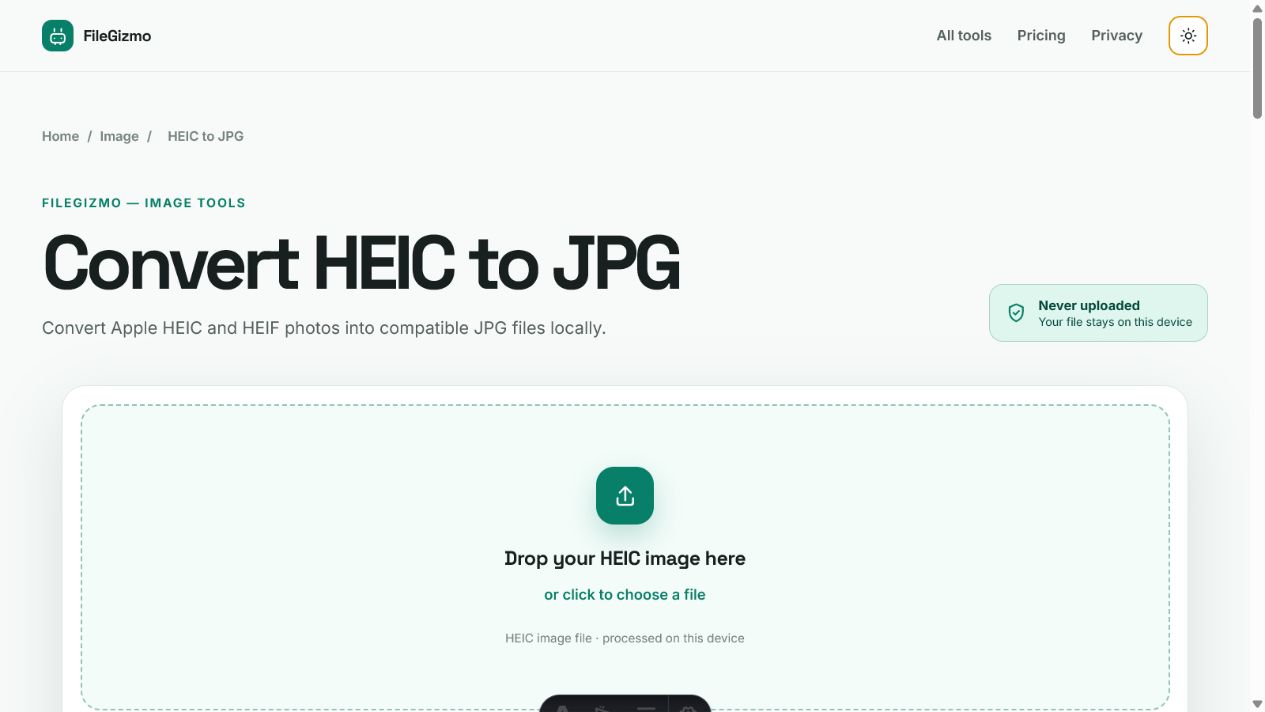
HEIC is an efficient container commonly used for iPhone photos, while JPG opens in more older apps and upload portals. Convert only when compatibility requires it, keep the HEIC original, and inspect color, orientation, dimensions, metadata, and file size. FileGizmo currently converts one still image at a time locally.
HEIC is efficient; JPG is compatible
HEIF means High Efficiency Image File Format. HEIC is a widely used extension for an HEIF container whose image is commonly encoded with HEVC. Apple introduced HEIF and HEVC capture support with iOS 11 and macOS High Sierra. Apple’s current documentation says the formats can use less storage than JPEG and H.264 while preserving similar visual quality.
That efficiency does not guarantee universal support. Older Windows installations, legacy editors, document systems, recruitment portals, website forms, and embedded devices may reject .heic even when the photo itself is ordinary. JPG is a simpler delivery format because decades of software can decode it.
Conversion is therefore a compatibility decision, not an automatic upgrade. If every recipient and application already opens the HEIC correctly, keeping it avoids another lossy encoding step. Convert a copy when a destination explicitly requires JPG or cannot display the source.
How to convert one HEIC photo to JPG locally
- Open HEIC to JPG and choose a
.heicor.heifstill image. - Select smaller, balanced, or higher-quality JPG output.
- Convert the file and inspect the browser preview, dimensions, and byte size.
- Download the JPG and open it in the destination application.
- Keep the original HEIC until the JPG has been accepted and checked.
FileGizmo decodes the image and creates the JPG in the browser. It does not send the selected photo to a file-processing server. The current workflow handles one source at a time so failures, memory use, and output review remain clear.
Balanced quality is the practical starting point for forms, ordinary sharing, and documents. Higher quality can preserve more texture in hair, fabric, foliage, gradients, and fine edges, but the result grows. Smaller output trades more detail for fewer bytes. If a portal requires exact dimensions or a maximum KB value, conversion alone is not enough; use Resize Image or Compress Image afterward and verify the final number.
What conversion can leave behind
An HEIF container can store more than the primary visible image. Depending on the camera and editing path, it may include multiple frames, depth information, thumbnails, orientation, color profiles, EXIF metadata, edits, or related media. An Apple Live Photo also includes motion content outside the single still that a JPG represents.
FileGizmo exports the primary visible still. It does not promise to carry the Live Photo video, depth map, burst, editing history, or every metadata field into JPG. That is why the source should remain the archival copy. The delivery JPG is for compatibility, not a complete replacement for the original capture.
Metadata deserves separate attention. A new JPG may omit some source metadata, but format conversion is not a certified privacy-cleaning process. Inspect the actual output when GPS or device details matter. FileGizmo’s current EXIF remover handles JPEG EXIF blocks, so it can be used on the final JPG when the goal is to remove that specific metadata structure.
Batch options for a folder of iPhone photos
FileGizmo converts up to 20 HEIC photos at a time, one after another, with a row per photo so one that fails is easy to spot. Hundreds of photos are still slow that way, so for a large personal library use a trusted operating-system or locally installed workflow that supports selecting multiple files and writing to a separate destination folder.
On a Mac, Apple documents opening HEIF images in Photos or Preview and exporting to JPEG or PNG. Depending on the current macOS interface, Finder Quick Actions, Preview, Photos, or an Automator/Shortcuts workflow may support multi-selection. Use Apple’s current instructions rather than a screenshot from an old release.
On Windows, HEIF support depends on the installed codecs and the application doing the conversion. Do not install an unknown “free codec pack” merely to process private photos. Prefer Microsoft Store components or a well-established offline image application, verify the publisher, and keep the operation local.
Whichever batch method you choose, copy five varied originals into a test folder first: portrait and landscape orientation, a dark photo, a bright photo, fine detail, and any image with edits. Convert those, inspect them, then process the larger copy. Never point an unfamiliar batch action at the only copy of a photo library.
Prevent future compatibility surprises on iPhone
Apple provides a Camera setting named Most Compatible that records new photos as JPEG and video as H.264 on supported devices. High Efficiency keeps HEIF and HEVC. Most Compatible can help when your regular workflow depends on older software, but it uses more storage for broadly similar visual quality and does not change photos already captured.
Apple also notes that some sharing and USB import paths may automatically convert newer formats for compatibility. That behavior can vary with the receiving device and transfer setting. An automatically converted attachment is convenient, but it is less predictable than creating and checking a named JPG yourself when a portal deadline depends on the result.
Check five things before deleting anything
Compare orientation, pixel dimensions, color, important fine detail, and file size. Open the JPG outside the converter and upload a harmless test when the destination allows it. Faces should not look smeared, text should remain legible, and gradients should not show distracting bands. A larger JPG is not automatically better if the source detail was already limited.
Keep filenames distinguishable. A suffix such as -converted or a separate JPG exports folder prevents the compatible copy from being confused with the richer original. Back up the originals before a large batch.
HEIC solves storage efficiency; JPG solves compatibility. A careful workflow preserves both benefits: retain the HEIC as the source, make a reviewed JPG only where needed, and never claim that one still-image conversion preserves every feature the container may hold.
Tools for this guide
Frequently asked questions
What is the difference between HEIC and HEIF?
HEIF is the image-container format; HEIC is a common filename extension used for HEIF images encoded with HEVC. Real files can contain more than a single visible still.
Does converting HEIC to JPG reduce quality?
Usually, because JPG uses lossy encoding and the visible image must be decoded and encoded again. A higher quality setting can reduce visible change but produces a larger file.
Can FileGizmo batch convert HEIC photos?
Yes, up to 20 photos at a time. Each is converted in turn with the same quality setting and gets its own download, and a photo that cannot be read is listed without stopping the rest. For a whole library, a trusted operating-system batch workflow is faster; test it on copied samples first.
Does HEIC to JPG conversion preserve metadata and Live Photos?
FileGizmo does not promise to preserve EXIF, depth maps, edits, bursts, or the companion video from a Live Photo. Keep the original HEIC when that information matters.