How to combine PDF and image files into one document
Turn JPG, PNG, WebP or HEIC images into PDF pages, combine them with existing PDFs in the right order, and verify the finished document without uploading it.
Updated . How guides are checked
Primary sources checked
Convert the image files into a PDF first, then merge that new image PDF with your existing PDFs. This two-step method keeps page order predictable and avoids uploading the files. Review page dimensions, image orientation, links, forms, and the final page count before sharing the document.
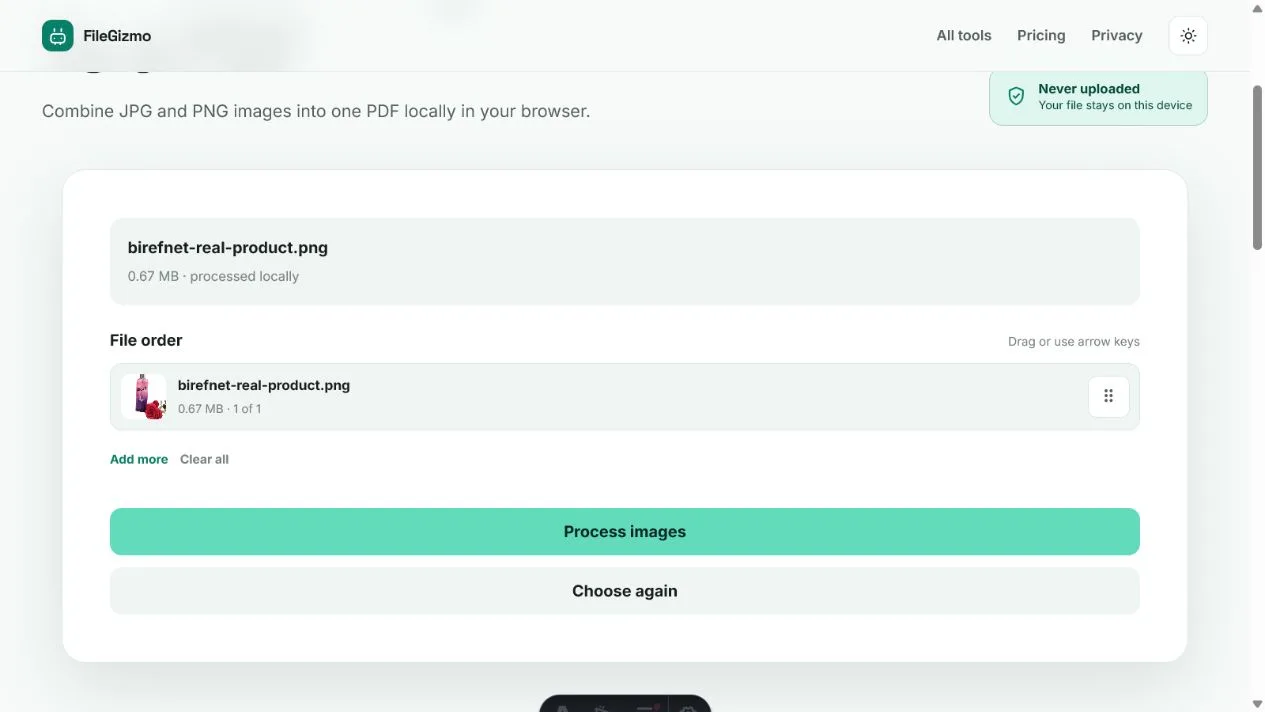
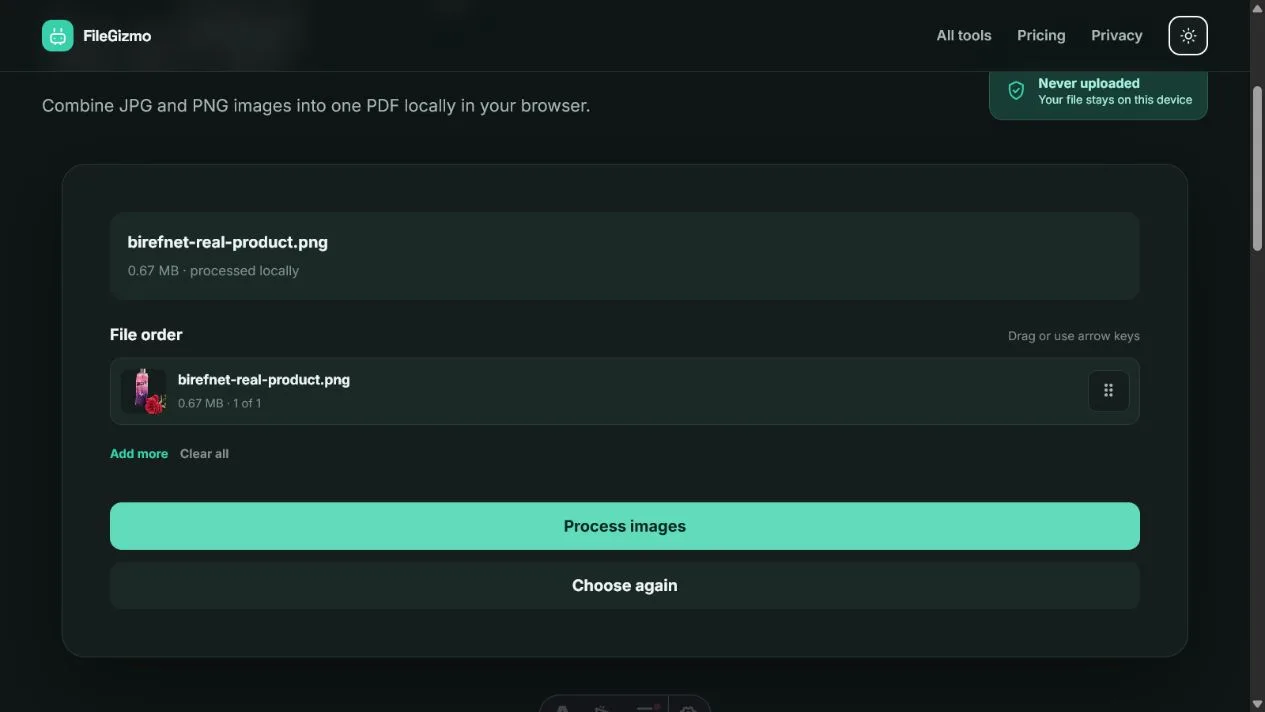
The fastest way
If you use a current Mac or iPhone and only need to insert one image, Apple Preview may be fastest. Apple documents dragging files into the sidebar on Mac and using Insert from File on iPhone. Adobe Acrobat can also combine PDFs, images, and other supported formats in one desktop workflow.
Use FileGizmo when you want a free browser route that keeps the files on your device. It uses two focused tools rather than one mixed-format picker: Images to PDF creates a PDF from the image files, then Merge PDF combines that result with the existing PDFs.
The two-step design makes the format change visible. You decide which images become pages, inspect their order, and keep the intermediate image PDF if something needs correcting.
Prepare the files before combining them
Put everything in one folder and rename the files in reading order. Names such as 01-cover.jpg, 02-application.pdf, and 03-receipt.png make mistakes easier to spot. Keep the originals until the combined copy has been accepted.
Rotate phone photos before conversion. Crop away the desk, fingers, shadows, and unrelated background around a scanned page. If a photograph contains location data or device details, use Remove EXIF when that metadata should not be shared.
FileGizmo’s image-to-PDF workflow accepts JPG, PNG, WebP, GIF and HEIC files. It places a JPG or PNG as it is. A HEIC or WebP photograph with no transparency is decoded and saved as a JPEG at quality 0.92, and a GIF, a picture with transparency or a flat graphic becomes a lossless PNG page, which can be many times the size of the original file, so convert such a picture to JPG with Image Converter first when the PDF must stay small. Open the converted copy and check colour, transparency, orientation, and text legibility.
Combine PDF and image files step by step
- Open Images to PDF and choose every image that belongs in the document.
- Check the visible file list. Move or reselect files until their order matches the intended page sequence.
- Process the images and download the new image PDF.
- Open that intermediate PDF in a reader. Confirm its page count, orientation, and image clarity.
- Open Merge PDF and choose the existing PDFs plus the image PDF in the required order.
- Merge the files and download the combined copy.
- Open the finished document and inspect the first page, every boundary between source files, and the final page.
The image stage creates one page per source image. The merge stage copies complete PDF pages into a new document. Neither step needs a FileGizmo account or a server upload.
If individual pages need to move after the merge, use Organize PDF on the finished copy. That is safer than repeating the entire workflow merely to swap two pages.
Understand image size and PDF page size
Pixels describe an image grid, not a physical sheet of paper. A 3000 by 4000 pixel phone photo has an aspect ratio and a lot of detail, but it does not inherently say “A4” or “Letter.” PDF pages use physical dimensions, commonly measured in points, where 72 points equal one inch.
FileGizmo creates each image page from the source dimensions so it does not crop or stretch the picture. Existing PDF pages keep their own dimensions during the merge. The result may therefore contain portrait, landscape, A4, Letter, and image-shaped pages together.
| Source | What becomes a page | Main check |
|---|---|---|
| JPG photograph | One page matching the image proportions | Orientation and unnecessary background |
| PNG screenshot | One page preserving the screenshot proportions | Small interface text at normal zoom |
| Existing PDF | Its original pages and dimensions | Forms, links, bookmarks, and signatures |
| HEIC or WebP | Decoded on your device: a photograph becomes a JPEG page, a picture with transparency a lossless PNG page | File size, colour and transparency |
Mixed page sizes are valid in a PDF reader. Printing is where differences become obvious. Select “fit to printable area” if the printer would otherwise crop a large image page, and inspect the print preview before using paper.
What happens to quality and file size
The pdf-lib API used by FileGizmo exposes separate operations for embedding JPG and PNG images and copying pages from another PDF. Supported image data is embedded without an intentional extra lossy recompression pass. Existing PDF pages are copied rather than rendered as screenshots.
Preserving the source does not guarantee a small output. A full-resolution phone photo can contain several megabytes, and a packet with ten such images can be far larger than a text-first report. Resize or compress the images before conversion if the destination has a strict limit.
Do not apply aggressive compression before checking the receiving requirement. Fine handwriting, stamps, QR codes, signatures, and small receipt text can become unreadable quickly. Keep the high-quality source and create a smaller delivery copy only when necessary.
If the finished document must fit a portal limit, try PDF compression first. A strict target tool can reduce the file further by recompressing its images, which softens photographs and invalidates certificate signatures while leaving searchable text, links, forms, and attachments intact.
The document features a simple merge can miss
A PDF is not only visible pages. It can contain bookmarks, form fields, attachments, comments, accessibility tags, multimedia, scripts, and certificate-backed signatures. Copying pages into a new document does not promise that every document-level feature will be rebuilt.
Preserve digitally signed originals. A visible signature may still appear after merging, but the source signature does not certify the newly assembled file. Test interactive forms, internal links, bookmarks, and attachments when the recipient needs them.
Adobe’s desktop documentation, updated 5 November 2025 when checked, credits Acrobat with previews, page arrangement, and support for several source formats in one combine flow. Its mobile documentation, updated 9 June 2026, says mobile combining requires a subscription, sign-in, an internet connection, and Adobe cloud storage. That cloud workflow is useful for people who need Adobe’s account features. FileGizmo is the better fit for a supported PDF, JPG, and PNG job where local processing matters more than a cloud workspace.
Verify the combined document before sharing
Count the pages and compare the total with the sources. Check every transition, especially where the image PDF begins and ends. Zoom into names, numbers, signatures, stamps, and QR codes. Confirm that portrait and landscape pages face the right way.
Use a descriptive filename such as application-with-receipts-reviewed.pdf. Keep the component files and intermediate image PDF until the destination confirms receipt. For a court filing, financial record, archival package, or accessibility-sensitive document, validate the output against the recipient’s rules rather than assuming a visually correct PDF is sufficient.
For more background, read how to merge PDFs privately, how to merge PDFs on iPhone, and the Smallpdf, iLovePDF and Sejda comparison.
Tools for this guide
Frequently asked questions
Can I combine JPG and PDF files into one PDF?
Yes. Convert the JPG files into a PDF, then merge that result with the existing PDFs. FileGizmo performs both steps locally in your browser, so the source files are not sent to a processing server.
Why do my image pages look larger than the PDF pages?
Image pixels do not define a physical paper size by themselves. FileGizmo gives each image page dimensions based on the source image, so a high-resolution phone photo can appear larger than an A4 PDF page. Mixed page sizes are valid, but print settings may need adjustment.
Does combining images with a PDF reduce image quality?
FileGizmo embeds supported JPG and PNG data without deliberately applying another lossy compression step. The output can still be large because preserving the source image also preserves much of its data.
Can I add HEIC or WebP images to a PDF?
Yes. Images to PDF takes HEIC, WebP and GIF as well as JPG and PNG, and decodes them on your device. A HEIC or WebP photograph with no transparency goes in as a JPEG at quality 0.92, and a GIF, a picture with transparency or a flat graphic as a lossless PNG. Convert a picture to JPG first when you want to see and choose the quality.