How to sign a PDF on Windows, Mac, iPhone, or Android
Add a visible signature to a PDF on any common device, choose the right built-in or browser tool, and verify the signed copy before sending it.
Updated . How guides are checked
Primary sources checked
Use Preview on Mac or iPhone when it is already available, Adobe Acrobat Reader for a familiar Windows or Android workflow, or FileGizmo for the same private browser workflow across devices. These methods add a visible mark. Confirm whether the recipient instead requires a certificate-backed digital signature.
Choose the kind of signature first
The fastest method depends on what the recipient means by “sign.” A visible electronic signature is a typed name, drawing, or signature image placed on the page. A certificate-backed digital signature also provides cryptographic information about the certificate and later document changes. A managed signing service can add identity checks, delivery records, timestamps, and an audit trail.
Ask the recipient which kind they require before editing the file. A school form or routine acknowledgement may accept a visible mark. A regulated filing, property transaction, financial authorization, or document that names a specific signing platform may not.
FileGizmo adds a visible signature. It does not verify identity, issue a certificate, lock later edits, or create a legal audit trail. Built-in Preview and basic Reader signing controls have similar limits when used only to place a visible mark.
The best starting option on each device
| Device | Practical first choice | Why it fits | Check before sending |
|---|---|---|---|
| Windows | FileGizmo or free Adobe Acrobat Reader | Both support a visible signature without buying Acrobat Pro | Confirm the downloaded filename and signature page |
| Mac | Preview | It is built in and Apple documents typed, drawn, camera, and nearby-device signature capture | Save a copy so the original remains untouched |
| iPhone | Preview | Apple’s current iPhone guide includes form filling and signature controls | Zoom in after saving because a phone screen can hide placement errors |
| Android | FileGizmo or free Acrobat Reader mobile | Both provide a guided signature workflow; FileGizmo keeps processing in the browser | Do not mistake a simple pen annotation for a certified signature |
This is not a claim that one option wins every job. Acrobat Reader is familiar and its current desktop and mobile help pages document signature workflows. Apple Preview is convenient on supported Apple devices. FileGizmo is useful when you want one interface across platforms and do not want to send the file to a processing server.
Sign a PDF on Windows
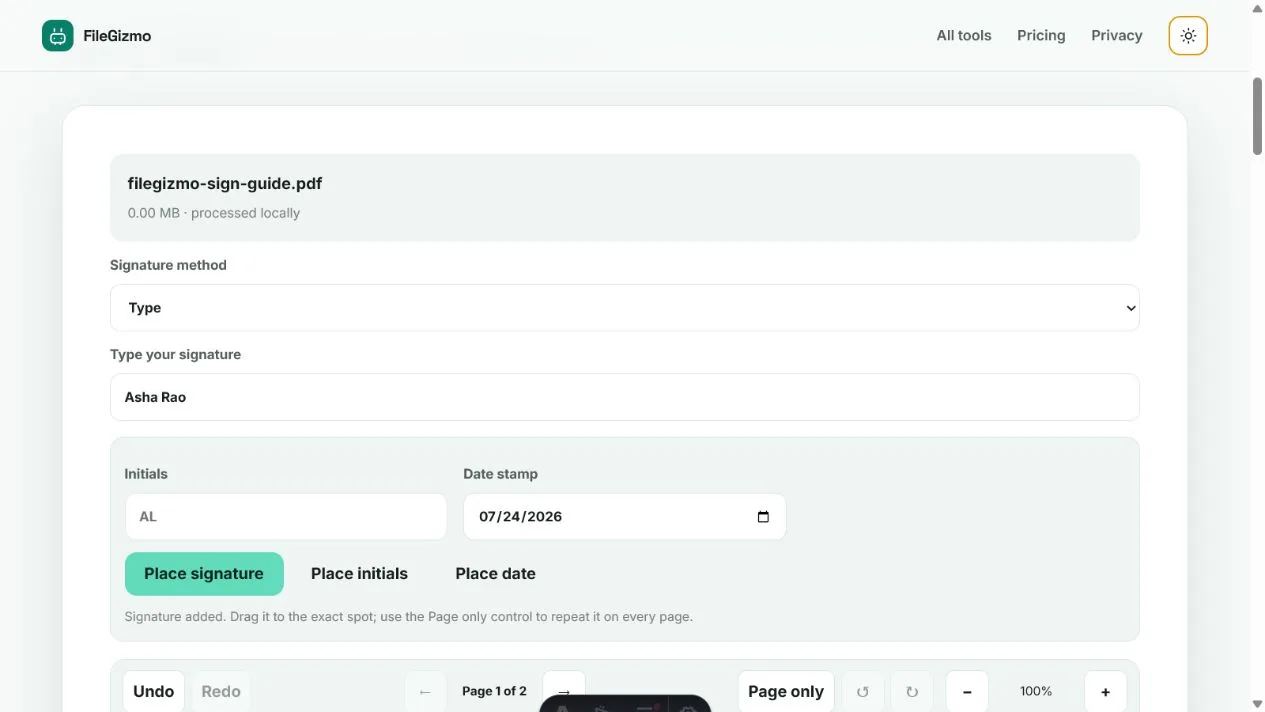
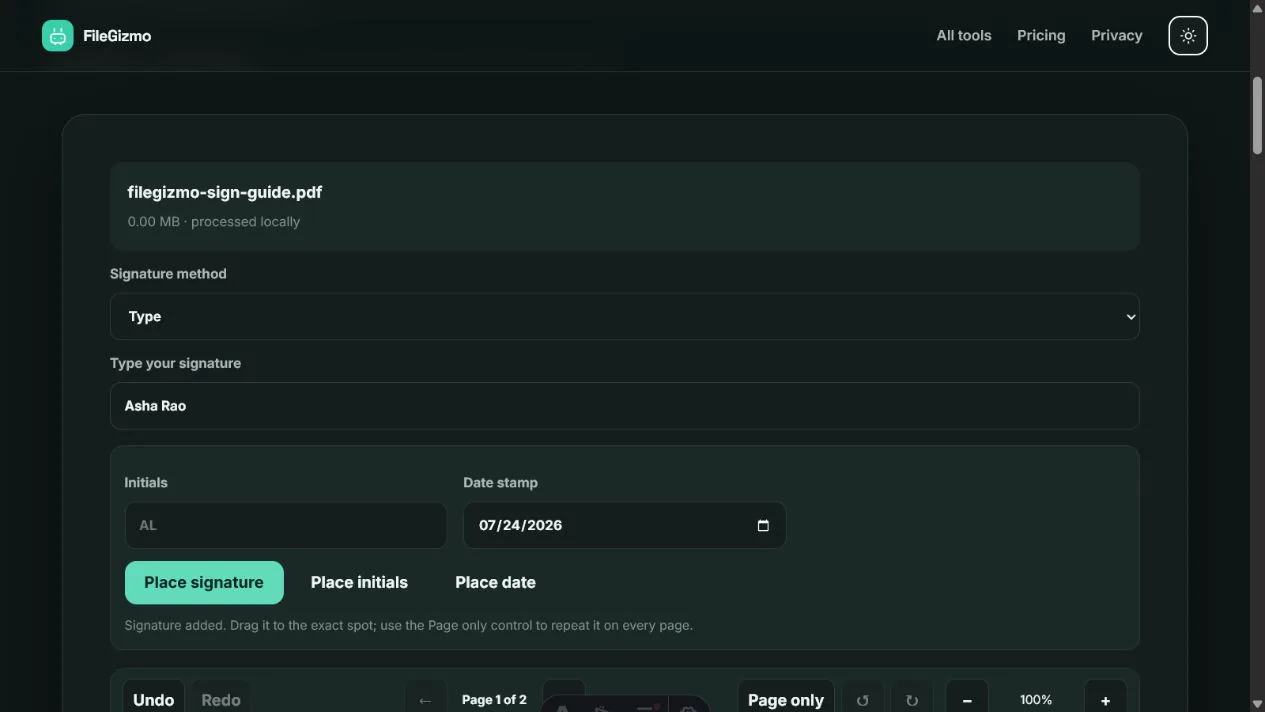
For the private browser route, open Sign PDF, choose the unlocked document, and select Type, Draw, or Upload image. Add the signature, move it on the page, and create the signed copy. No account is required, and the file stays in the browser workflow.
Adobe’s Reader documentation, updated 22 June 2026 when checked, also describes opening the E-Sign menu and choosing Fill & Sign. Reader is the better fit if an organization already supports Adobe’s interface or you need features that FileGizmo does not provide. Check Adobe’s live product terms before assuming that an advanced identity or cloud workflow is free.
Whichever route you choose, save the result as a new file. Open it in a separate reader and make sure the mark is on the intended page rather than a similarly numbered printed page.
Sign a PDF on a Mac
Open the document in Preview, show the Markup toolbar, and use the Sign control. Apple’s current Preview guide documents creating a signature with the trackpad, the Mac camera, or a nearby iPhone or iPad. Place the signature on the correct page, resize it without covering nearby text, then save a copy.
Preview is a strong first choice because it is built into macOS. FileGizmo remains useful if you prefer not to save a reusable signature in an application, need the same steps on another device, or want to upload a tightly cropped transparent PNG. Neither visible-mark route automatically creates a certificate-backed signature.
Sign a PDF on an iPhone
Apple’s current iPhone guide documents opening a PDF in Preview, selecting the form-filling control, and adding a signature. The labels can differ across iOS releases, so use Apple’s current instructions for the version installed on the phone.
After placing the mark, pinch to zoom and inspect its edges. A signature can look correctly positioned at fit-to-screen size while covering a date, checkbox, or printed name at full resolution. Save or share the completed copy only after checking every required page.
You can also use FileGizmo in a current mobile browser. Draw mode works with touch, while Type mode avoids a rough finger-drawn mark. For a long or complex form, a larger screen makes page selection and placement easier.
Sign a PDF on Android
Adobe’s mobile help, updated 9 June 2026 when checked, documents opening a PDF, choosing Fill & Sign, selecting the signature control, and placing the mark. Adobe also states that the free Acrobat Reader mobile app can be used to fill and sign forms, while paid plans cover additional features.
Google Drive can annotate PDFs on Android with a pen or highlighter and save the original or a copy. That is useful for a quick handwritten mark, but it is not the same as a reusable signature workflow, identity verification, or a certificate-backed digital signature. Use it only if the recipient accepts a visible freehand mark.
FileGizmo offers the same Type, Draw, and Upload image choices as its desktop route. Large PDFs may feel slower on a phone because local memory and processor limits are lower. Close unused tabs if the preview struggles, and keep the source file until the recipient confirms acceptance.
Use one private workflow across all four platforms
- Keep an untouched copy of the source PDF.
- Open Sign PDF in a current browser and choose the file from the device.
- Type a name, draw a mark, or select a cropped PNG or JPG that you are authorized to use.
- Place the signature on the correct PDF page. Drag it away from dates, amounts, checkboxes, and required text.
- Create and download the signed copy.
- Open that copy outside the tool and inspect every page at normal size and while zoomed in.
The browser reads the PDF and builds the new copy locally. You can check this in the browser Network panel: no file upload request should appear while the signature is processed. Temporary previews use local browser URLs rather than a remote document link.
If the PDF also contains fields, complete them with Fill PDF Form before signing. Some certificate signatures become invalid when a document is changed, so preserve any signed original and follow the sender’s order of operations.
Verify the signed file before sending
Check the signature page, spelling, date, initials, page count, orientation, and filename. Confirm that the mark is not clipped and that no content disappeared. If the sender provided a portal, review its preview before final submission.
Do not email a reusable signature image beside the finished document. Store that asset securely on your own device, and never place another person’s signature without authority. For identity-sensitive or high-value documents, use the recipient’s required service and obtain appropriate advice rather than relying on appearance alone.
Tools for this guide
Frequently asked questions
How do I sign a PDF on Windows without paying?
Adobe Acrobat Reader can fill and sign PDFs, and FileGizmo can add a typed, drawn, or uploaded visible signature in a current browser. FileGizmo processes the document locally and does not require an account. Check whether the recipient requires a certificate-backed signature before choosing either visible-mark workflow.
Can I sign a PDF in Preview on a Mac or iPhone?
Yes. Apple documents signature controls in Preview on Mac and in the iPhone Preview app. The exact controls vary by operating-system version, so update the device and follow Apple's current guide if the signature button is not visible.
Is drawing on a PDF in Google Drive the same as signing it?
Not necessarily. Google Drive on Android can annotate a PDF with a pen and save the annotated file, but a freehand mark is not a managed signature record or a certificate-backed digital signature. Use the method specified by the recipient.
Can I sign a PDF without uploading it?
Yes. FileGizmo reads the PDF and creates the signed copy inside the browser. Apple Preview also works on the device. Cloud signing platforms may provide audit trails and identity features, but they process or store documents under their own published terms.