How to split a huge PDF into chapters
Plan chapter boundaries, split a large PDF into clearly named page-range files, and verify bookmarks, links, signatures, and page numbers before sharing.
Updated . How guides are checked
Primary sources checked
Map each chapter to the PDF reader's actual page positions, then enter one inclusive range per output file. Keep front matter with the section that needs it, use clear filenames, and inspect bookmarks, cross-chapter links, forms, and signatures afterward. Preserve the complete original as the navigation and verification master.
Plan the chapter map first
Do not begin by choosing an arbitrary number of pages per file. A useful chapter starts and ends at a meaningful document boundary. Check the table of contents, section title pages, appendices, bibliography, index, and any blank divider pages.
Record the ranges using the PDF reader’s page positions. A printed page number can differ from the position shown by the reader because a cover and Roman-numeral front matter may come first.
| Output | Chapter title | PDF page positions | Expected pages |
|---|---|---|---|
| 01 | Front matter | 1-8 | 8 |
| 02 | Methods | 9-34 | 26 |
| 03 | Results | 35-67 | 33 |
| 04 | Appendices | 68-92 | 25 |
Every source page should appear exactly where you intend, with no accidental gap or overlap. Adjacent ranges normally end on one page and begin on the next, such as 1-8, 9-34, 35-67, 68-92.
Decide whether a shared contents page belongs only in the front matter or should be copied into every chapter. FileGizmo’s Split PDF tool creates non-overlapping outputs for the ranges you enter. Use Extract PDF Pages when you deliberately need the same reference page repeated in multiple files.
Split the PDF step by step
- Open the complete PDF in a reader and note the total page count.
- Build a chapter table with an inclusive first and last PDF position for every output.
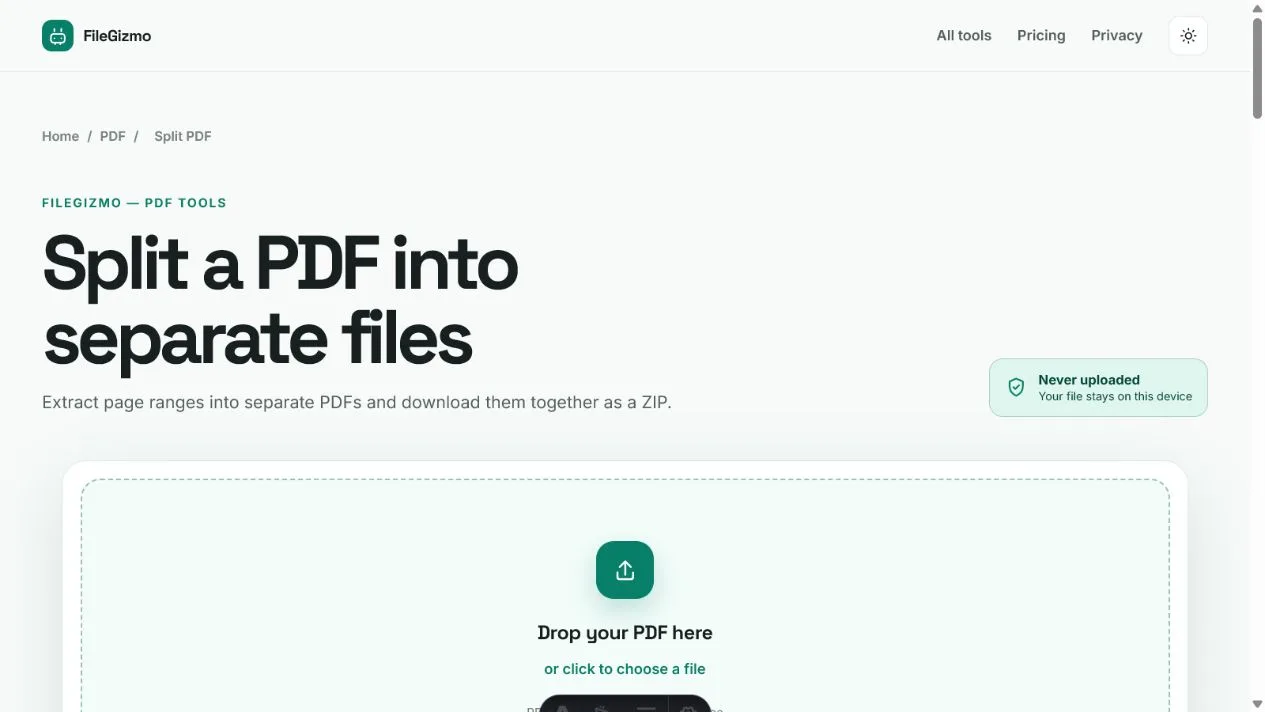
- Open Split PDF and choose an unlocked PDF from your device.
- Enter comma-separated ranges such as
1-8, 9-34, 35-67, 68-92. - Recheck the first page, last page, and expected count for each range.
- Start the split and wait for the local worker to create the files.
- Download the ZIP, extract it, and rename the chapter PDFs descriptively.
- Open every file and run the verification checks below before sharing.
Leaving the range field blank creates one PDF for every source page. That is useful for a page-level archive, but it is not a chapter split and can create hundreds of files. Purposeful ranges use less browser memory and produce a more understandable result.
The tool rejects malformed, reversed, and out-of-bounds ranges before creating the archive. Page numbers are one-based, so the first PDF page is 1, not 0.
Name files so the set stays understandable
The generated filenames include the source stem and page range. After extracting the ZIP, add a stable sequence and chapter name:
| Weak filename | Better filename |
|---|---|
report_pages-9-34.pdf |
02-methods-pages-9-34.pdf |
report_pages-35-67.pdf |
03-results-pages-35-67.pdf |
part3-final-new.pdf |
03-results-revision-2026-07-25.pdf |
Use leading zeroes when there are ten or more chapters so normal filename sorting preserves the intended order. Keep source page positions in the name when recipients may need to cite the complete document.
Place a short manifest or readme beside the chapters when the set is formal. List the original title, version date, chapter filenames, source ranges, and checksum or document identifier if your workflow uses one. A ZIP is only packaging; it does not explain how its contents relate.
Understand what page copying preserves
FileGizmo uses pdf-lib’s page-copying API to create each output. Pages remain PDF objects rather than screenshots. Selectable text, vector graphics, images, annotations represented on the page, and page dimensions can carry into the new files without intentional image-quality loss.
Document-level features are different. Adobe’s extraction guidance, updated 23 September 2025 when checked, says bookmarks and article threads associated with pages are not extracted. Links aimed at a page placed in another chapter can stop resolving. Attachments, named destinations, accessibility structure, forms, layers, and portfolio relationships also need direct inspection.
Certificate-backed signatures deserve special care. Splitting creates new documents, so the new chapter files should not be presented as retaining the original document’s certificate validity. Keep the signed original and share it alongside excerpts when authenticity matters. A visible signature image may still appear, but that is not the same as a valid digital signature.
Choose manual ranges or bookmark splitting
FileGizmo is designed for explicit page ranges and local processing. It is a good fit when the chapter boundaries are known, the document must not be uploaded, and you want a single ZIP without an account or task limit.
Adobe Acrobat desktop is stronger for automatic structure. Its documentation, updated 12 December 2025, says it can split by a maximum page count, maximum file size, or top-level bookmarks, with output-folder and naming controls. Use it when reliable top-level bookmarks already define the chapters or when a target file size matters more than chapter boundaries.
Acrobat on the web uses visual divider lines and currently permits up to 22 dividers depending on page count. Adobe’s page, updated 9 April 2026, says the source is uploaded and the split files are saved to Adobe cloud storage. That workflow offers a visual cloud workspace. FileGizmo offers the narrower manual-range job without transferring the document.
Mac users can also create a new PDF by dragging selected thumbnails from Preview’s sidebar to the desktop. Apple documents this as a built-in route for a small number of manually selected pages. FileGizmo is more convenient when several exact ranges should be produced together and downloaded as one archive.
Verify every chapter
For each output, confirm the first page, last page, page count, and filename against the chapter map. Search for a known phrase to confirm that text remains usable. Open important links and form fields. Check bookmarks and the accessibility reading order when recipients depend on them.
Look for context that was stranded across a split: a heading without its first paragraph, a footnote separated from its reference, a figure without its caption, an appendix label on the previous page, or a blank verso that should remain with a printed spread. Move the split point and split again when necessary.
Keep the complete PDF unchanged as the master. If the goal is only to send a large file, try why a PDF is too big to email before dividing a document that should remain whole. Read how to add page numbers correctly when printed labels do not match reader positions, and use the best free PDF editor comparison when chapter files need repaired bookmarks or advanced document structure.
Tools for this guide
Frequently asked questions
How do I split a large PDF into separate chapters?
Record the first and last PDF page position for each chapter, enter those inclusive ranges in FileGizmo's Split PDF tool, and download the generated PDFs as one ZIP. Open every output and compare its page count and chapter boundaries with your plan.
Can a PDF be split automatically at bookmarks?
Adobe Acrobat desktop can split at top-level bookmarks. FileGizmo currently uses explicit page ranges, which is predictable for PDFs without reliable bookmarks but requires you to map the chapter boundaries yourself.
Does splitting a PDF reduce its quality?
FileGizmo copies pages into new PDFs instead of rendering them as images. Text, vectors, embedded images, and page dimensions remain in PDF form. Document-level navigation, cross-file links, attachments, and certificate signatures still require verification.
Can I split a password-protected PDF?
Only when you own the document or have permission and know its password. Unlock an authorised working copy first. A permissions restriction or certificate-backed signature can have legal or workflow consequences, so retain the protected original.