How to add page numbers to a PDF the right way
Add page numbers to a PDF without covering content, pick the right start number and position, and know when numbering needs the source file.
Updated . How guides are checked
Primary sources checked
Add visible numbers only after the PDF's page order is final. Skip an unnumbered cover when needed, choose a clear margin position, set the displayed starting value, and inspect every page for overlap. Use the source document or a full PDF editor for Roman numerals, section restarts, or alternating layouts.
The fastest way
If you still have the Word, Pages, Google Docs, or publishing source, add page numbers there before exporting the final PDF. The source application understands sections, headers, footers, title pages, and automatic table-of-contents references. That is the cleanest route for a formal report.
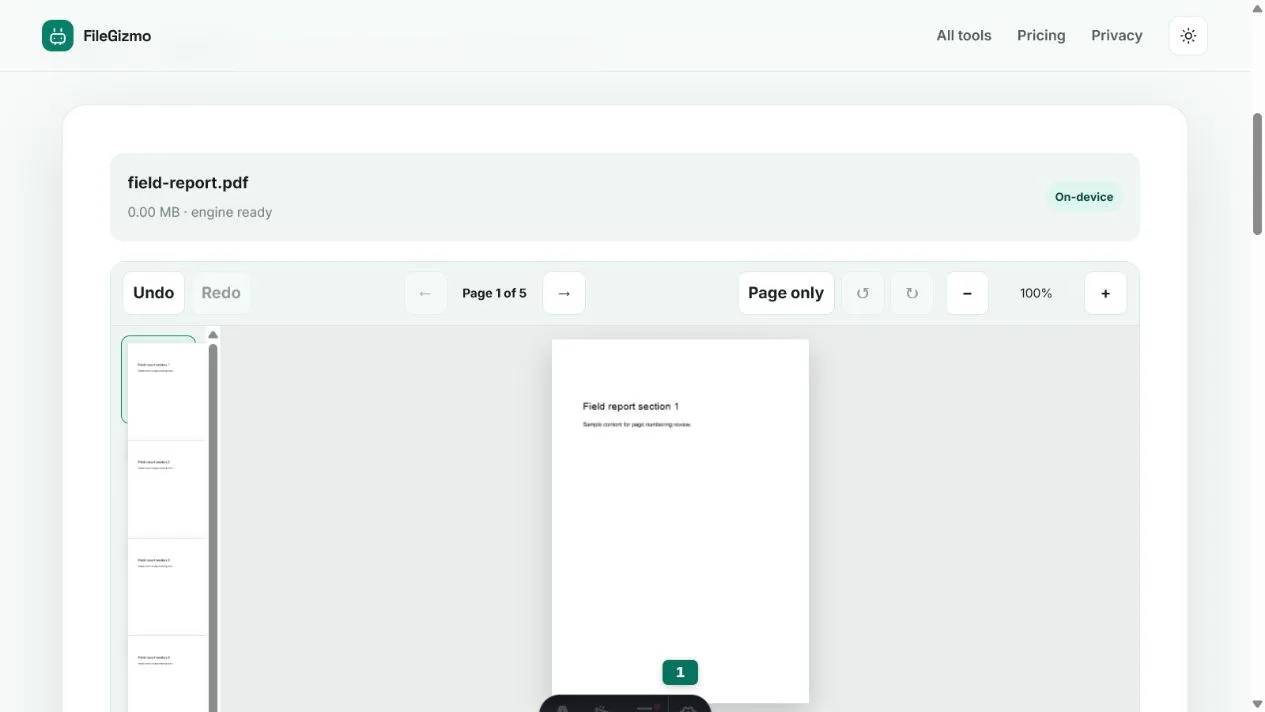
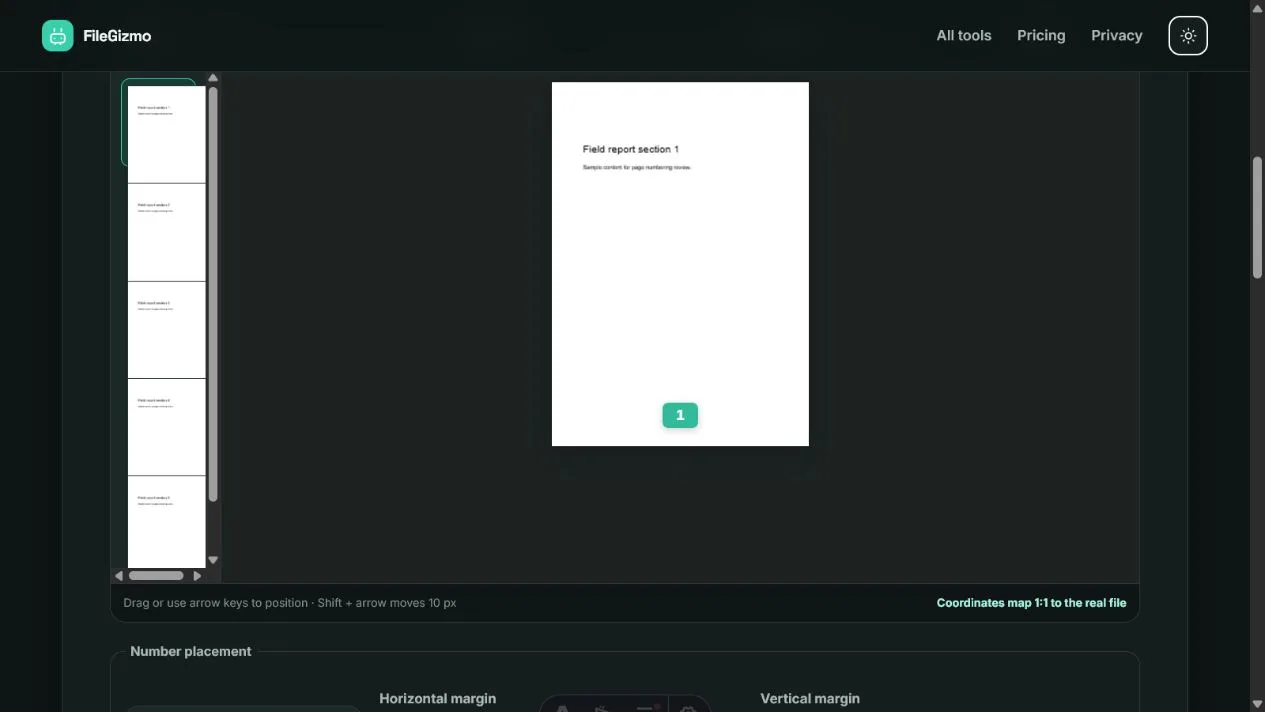
If the PDF is already final and only needs simple visible Arabic numbers, use Add Page Numbers. FileGizmo can set a starting value, skip the first page, place numbers in nine zones, adjust margins, and preview the result without uploading the document.
Use Acrobat or another full PDF editor when you need Roman numerals, a prefix such as “Appendix A-1,” different numbering styles by section, alternating inside and outside margins, or automatic “Page 1 of 20” text.
Number only after merging, deleting, rotating, and reordering pages. Otherwise the printed numbers can stop matching the final sequence.
Decide what “page number” means
PDFs can contain three numbers for what looks like the same page:
| Number | Example | Where it appears |
|---|---|---|
| Ordinal position | PDF page 7 of 24 | Reader navigation and thumbnails |
| Logical page label | vii or A-3 | Reader interface when labels are defined |
| Visible printed number | 7 at the bottom centre | Page content and printed output |
Adding visible text does not automatically change the reader’s logical page labels. Changing page labels does not necessarily print anything on the page. Adobe’s reference material distinguishes page labels from page numbers physically added through headers and footers.
FileGizmo adds visible numbers. That is the correct job for a submission, report, handout, or printed packet that needs a human-readable reference on each page. It does not rewrite logical page labels in the PDF catalogue.
Add page numbers step by step
- Finish the document’s page order. Use Merge PDF or Organize PDF before numbering.
- Open Add Page Numbers and choose an unlocked PDF.
- Review the thumbnails and confirm the page count.
- Choose one of the nine placement zones. Bottom centre is a safe first attempt for ordinary portrait pages.
- Adjust horizontal and vertical margins so the number sits inside the printable area without touching content.
- Enter the first displayed number. Enable Skip the first page when the cover should remain unnumbered.
- Use the page-range fallback if only selected pages should receive numbers.
- Add the numbers, download the new PDF, and inspect every page in a separate reader.
The preview number can be dragged for visual positioning. Use the thumbnails to sample pages with different layouts. A position that works on a mostly empty first page can cover a footer, citation, signature line, or photograph later in the document.
Choose the correct starting number
The starting value belongs to the first page that receives a number, not necessarily PDF page one. If you skip a cover and set the start to 1, the second physical page displays 1. If a packet continues from an earlier volume, set the first included page to the next required value.
Common patterns include:
| Document structure | Practical setup |
|---|---|
| No cover | Number every page, start at 1 |
| One unnumbered cover | Skip first page, start at 1 |
| Cover counts but hides its number | Skip first page, start at 2 |
| Cover plus unnumbered contents | Number a later page range, start at 1 |
| Continued appendix | Start at the required next integer |
Microsoft’s current Word guidance explains why source files remain better for complex starts. A different first page can hide a title-page number, while section breaks can restart numbering or use Roman numerals for introductory material.
FileGizmo supports a non-negative integer start and visible Arabic numerals. It does not create lower-case Roman numerals, alphabetic sequences, section-specific prefixes, or a separate style for front matter.
Position numbers without covering content
Choose a quiet margin rather than the page’s most familiar location. Bottom centre works for many reports, but a footer can already contain a date, confidentiality notice, document code, or existing number. Bottom right can collide with signatures or form fields. Top positions can overlap running headers.
Inspect the busiest page, not only the first page. Look for full-width tables, legal footers, slide-like pages, landscape sheets, scanned edge notes, and pages with different crop boxes.
The editor offers top, middle, and bottom rows with left, centre, and right alignment. Horizontal and vertical margin controls move the label inward. Middle positions are useful for unusual layouts, but they are rarely appropriate for normal body pages because they can cover content.
FileGizmo does not automatically detect text or choose an empty zone for every page. The same placement rule applies across the selected pages. Use a full editor when different pages require different positions.
What happens to the PDF
The local worker opens the PDF, embeds Helvetica, and draws vector text on each selected page. Existing page content is not converted into an image, and supported images are not deliberately recompressed. The output remains searchable where the source was searchable.
The process creates a new PDF. Preserve the original, especially when it contains certificate-backed signatures, interactive forms, attachments, accessibility structure, or document-level navigation. Drawing new content can invalidate a prior digital signature even though its visible appearance remains.
Adobe’s desktop page-number documentation, updated 5 November 2025 when checked, supports numbering through headers and footers with formatting, margins, and preview controls. Its web numbering page, updated 1 April 2026, says the selected file is uploaded and the result is automatically saved to Adobe cloud storage. Adobe’s cloud workflow is useful for people who want its account and editing system. FileGizmo is the private option for the simpler visible-number job it supports.
Verify the finished PDF
Open the download outside FileGizmo. Confirm the first displayed value, last value, skipped pages, and total page count. Check both portrait and landscape pages, and zoom into any footer with existing content.
Print preview is essential if the document will go on paper. Some printers cannot reach the physical edge, while “actual size” and “fit” settings can change apparent margins. Confirm that the number is visible inside the printable area.
Check links, form fields, bookmarks, and signatures when the recipient depends on them. Keep the unnumbered original until the destination accepts the numbered copy. For court filings, tenders, academic submissions, or regulated records, follow the receiving body’s current page-number rule rather than a generic tutorial.
Read how to combine PDF and image files, how to merge PDFs privately, and the fair best free PDF editor comparison for related workflows.
Tools for this guide
Frequently asked questions
How do I add page numbers to a PDF for free?
Use FileGizmo's Add Page Numbers tool to place visible numbers locally in your browser. Choose the position, margins, starting value, and whether to skip the first page, then download and inspect the new PDF.
How do I start page numbering on the second page?
Enable Skip the first page and set Start numbering at to the value the second PDF page should display. If a cover and table of contents both need no visible number, use the page-range fallback or add section-aware numbering in the source document.
Why do PDF page numbers not match the number in my reader?
A PDF reader can show a page's ordinal position or a logical page label, while a printed number is visible content drawn on the page. These can differ when a document has a cover, Roman-numeral front matter, appendices, or numbering that starts later.
Will adding page numbers change the PDF quality?
FileGizmo draws vector text onto the existing pages. It does not rasterize the document or deliberately recompress images. The output is still a new PDF, so preserve signed originals and verify links, forms, and certificate signatures.