Why your PDF is too big to email and 5 ways to fix it
Find what made a PDF too large for email, choose the least destructive fix, and avoid sending an unreadable document just to cross an attachment limit.
Updated . How guides are checked
Primary sources checked
Check the sender's full message limit, not only the PDF's displayed size. Remove accidental pages, export the source efficiently, try standard optimization, then use quality-reducing compression only when necessary. Split by meaningful sections or send an access-controlled link when the complete readable document cannot fit safely.
Check the limit before changing the file
An attachment error is not proof that the PDF is broken. The sender, recipient, workplace administrator, or mail gateway may enforce a limit on the whole message. Other attachments, the message body, signatures, and transport encoding all consume part of that allowance.
Google currently gives personal Gmail accounts a 25 MB total attachment limit. Above it, Gmail uses a Google Drive link rather than a normal attachment. Microsoft says Outlook’s limit for internet accounts such as Outlook.com or Gmail is 20 MB, including the attachment and message, while an Exchange organisation can use a different policy.
Do not aim exactly at the published ceiling. A 24.9 MB file is not a dependable Gmail attachment just because it appears below 25 MB in a file manager.
MIME email commonly represents binary attachments with Base64. RFC 2045 defines four encoded characters for each three-byte input group, plus line wrapping. That makes the transported attachment roughly one-third larger before message headers and other content. Mail systems do not all calculate their limits at the same stage, so leave headroom and test the finished message.
Why the PDF became large
Open the PDF and identify its content before choosing a fix. A 100-page text report can be smaller than five photographed pages.
| Likely cause | What to look for | Least destructive first move |
|---|---|---|
| Camera scans | One full-page colour image per sheet | Rescan or export at a sensible resolution |
| High-resolution photos | Marketing artwork, portfolios, site photographs | Downsample a delivery copy |
| Inefficient structure | Software-generated PDF with repeated or unpacked objects | Try standard optimization |
| Embedded extras | Attachments, unused pages, comments, layers | Remove only what the recipient does not need |
| Print-first export | Bleed, crop marks, press-quality images and fonts | Export a separate screen or email preset |
Cropping visible margins is not a reliable size fix. A crop box can hide pixels without deleting the underlying image. Likewise, converting a PDF to ZIP usually saves little because the document may already contain compressed JPEG images and compressed object streams.
Keep the original before modifying anything. A smaller email copy should not replace the archival, signed, accessible, or print-production master.
Five ways to make the PDF sendable
1. Remove pages and extras that were included by mistake
Check for blank scanner backs, duplicate pages, old appendices, embedded source files, and comments that the recipient does not need. Delete only genuinely unnecessary material. Do not remove terms, signatures, evidence, or required annexures just to satisfy an inbox.
If the recipient needs only a chapter, use a purpose-built extraction or split PDF tool and name the excerpt clearly. Retain the complete original so the excerpt cannot be mistaken for the full record.
2. Export again from the source application
When the Word, presentation, design, or scanning source still exists, create a delivery export from it. Choose an ordinary screen or standard-quality PDF preset rather than a press-quality preset. Avoid crop marks and bleed unless a printer requested them.
For scans, choose a resolution that preserves the smallest meaningful text, stamps, QR codes, handwriting, and photographs. Adobe’s December 2025 scanner guidance uses 300 dpi as a practical colour or grayscale starting point and 600 dpi for black-and-white scanning, but the correct choice depends on the document. Inspect the output rather than treating one number as universal.
3. Try standard PDF optimization
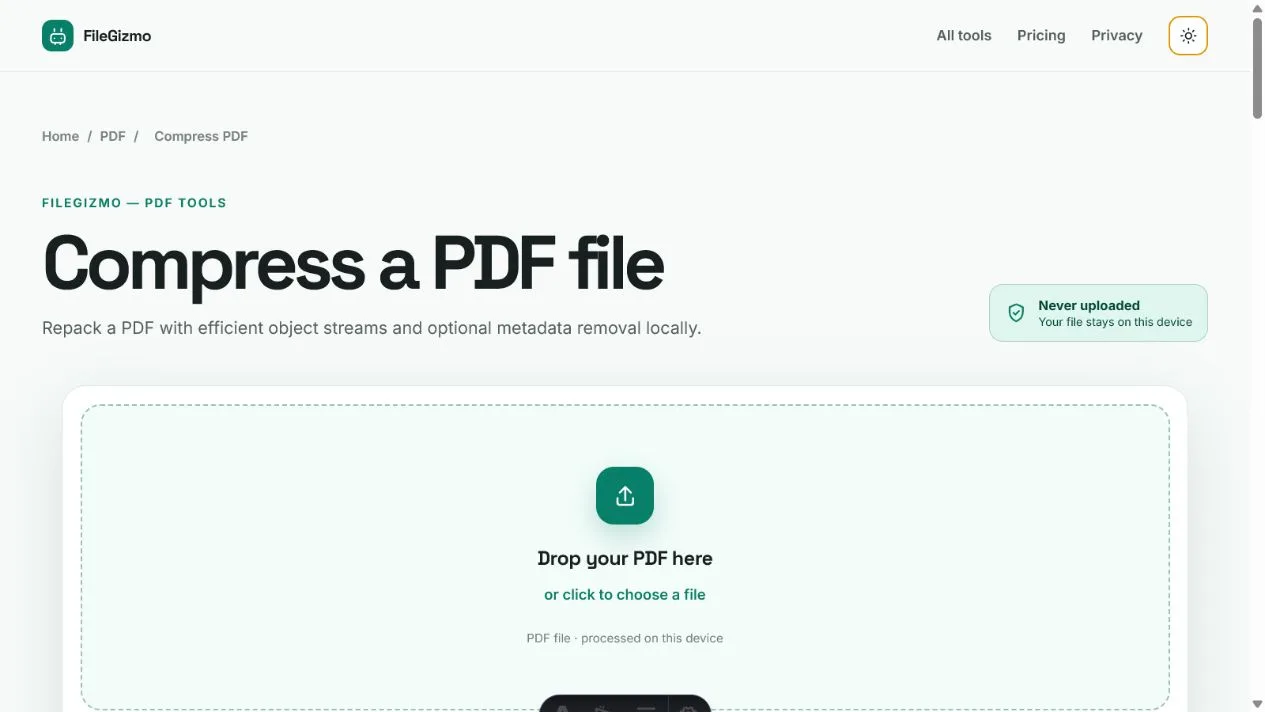
Compress PDF repacks PDF objects efficiently and can remove common document-information metadata. It runs locally and does not rasterize pages, downsample images, or deliberately lower visual quality.
This is the safest first compression pass, but it cannot guarantee a reduction. A modern export may already be efficient. A scan dominated by JPEG images may contain little structural overhead to remove. If the result is larger, keep the original.
Adobe Acrobat’s desktop Reduce File Size workflow, updated 23 September 2025 when checked, offers compatibility-based optimization and batch processing. Acrobat is the stronger choice when you need its full desktop optimizer and audit controls. FileGizmo is the private, no-upload choice for the simpler lossless repack it supports.
4. Reduce image quality in a delivery copy
When standard optimization is insufficient, image downsampling or lower JPEG quality can produce a much larger reduction. It also permanently discards detail. Use a dedicated size target only when the destination states one.
FileGizmo’s 500KB PDF target is suitable for strict portals, not as an automatic default for email. It recompresses the embedded images to reach the ceiling, which visibly softens photographs and invalidates certificate-backed signatures, though selectable text, links, forms, and attachments all survive. Read every name and number, test QR codes, and zoom into seals and handwriting before sending.
If the readable result will not fit, the correct answer is not stronger compression. Choose a different delivery method.
5. Split the document or send a controlled link
Split at real chapter boundaries when recipients can work with separate files. A contents page, clear filenames, and a short message reduce the chance of a section being missed. Do not split a signed contract, application packet, or regulated record if it must remain one complete document.
A cloud link preserves the complete PDF without attachment encoding overhead, but it changes who can reach the file. Set the intended recipient, expiry, download permission, and revocation controls. Confirm that the recipient can access the service before relying on it.
Apple says Mail Drop accepts attachments up to 5 GB and makes them available for 30 days. Gmail automatically switches files above its personal attachment threshold to Drive. These are useful delivery systems, but the document is uploaded to their cloud storage. Use them knowingly for material that is appropriate to store there.
Verify the result before sending
Open the final PDF in a separate reader and compare its page count with the source. Search for a known sentence, test important links, inspect photographs at normal size and zoom, and check form fields or signatures that matter. Confirm that the filename distinguishes the email copy from the master.
Attach it to a draft and inspect the total message size. If a link replaced the attachment, review the sharing permission from a private browser window or a test account. Send sensitive material only through a channel approved by the recipient or your organisation.
For stricter targets, read how to compress a PDF to 100KB, 200KB, or 500KB. For mixed documents, see how to combine PDF and image files. The Smallpdf, iLovePDF and Sejda comparison shows where each service processes a confidential file and how long it keeps it.
Tools for this guide
Frequently asked questions
Why is my PDF too large to attach to an email?
Scanned pages, high-resolution photographs, embedded fonts, duplicate resources, attachments, and inefficient export settings can make a PDF large. Email also encodes binary attachments for transport, so the complete message can be larger than the file shown on disk.
What is the largest PDF I can send through Gmail?
Google currently states a 25 MB total attachment limit for personal Gmail accounts. Files above that threshold are shared through Google Drive instead of being included as normal attachments. Workspace administrators can set different limits, and the recipient's service can impose a smaller one.
Does zipping a PDF make it much smaller?
Usually not. Most PDFs already compress images, fonts, and object streams internally. A ZIP can remove a little packaging overhead, but it cannot recover detail or substantially recompress JPEG images that are already compressed.
Can I reduce a PDF for email without uploading it?
Yes. FileGizmo's Compress PDF tool repacks the document locally in your browser. It does not upload the PDF or deliberately reduce image quality, although an already efficient or image-heavy file may not become smaller.